Self-hosting with Kamal and why you should do it too
Originally published on Substack. This is the original article; tools and services may have changed since publication.
Lately, I’ve been working more seriously on a personal project that I work on and off for years. It is a simple personal finance web application that we use to manage our household expenses and split the bills. I decided to finally pick it up and try to finish (for real this time). I finally reached a point where me and my girlfriend could use it and I needed to put it online somewhere.
There are a lot of good options out there where anyone can publish their web application in a very convenient way (for example, Fly.io or Render just to name two of them). I have nothing against any of these options, they are great if that is what you are looking for (I tried out Fly.io for simple things and it is pretty good). But I wanted to do my own thing and control all of my resources. I wanted the freedom of having my machines and doing whatever I wanted with them. But on the other hand, I also wanted the convenience that all of these services provide, usually through a nice CLI tool.
Enter Kamal. It is an open-source project developed by 37signals and it aims to be a simple, easy, and straightforward way to deploy web applications anywhere you only need a SSH connection and Docker. The setup is just a YAML file with some basic information on where and how to deploy things. This is all I needed!
The master plan
I have a simple Ruby on Rails application and the only dependency right is just the PostgreSQL database. The Rails project generator already creates a Dockerfile to run the application in a production environment. This is very convenient because I already wanted to run the application in a Docker container in the first place anyway.
It is also important to note that none of this is specific to a determined language or framework. As long as I have a Docker image, I can deploy it.
Again, I could use any of the existing services out there to host my database (for example Neon, DigitalOcean’s managed databases, or even AWS RDS) but I again decided that it was more interesting to self-host the database as well.
I trully belive my mantra that in personal projects your guidelines to make decisions should always be:
It should be fun.
It allows you learn or exercise something new or different.
Remember that with technology (and mostly life in general) there is rarely “absolutely right” or “completely wrong”. Everything is a tradeoff.
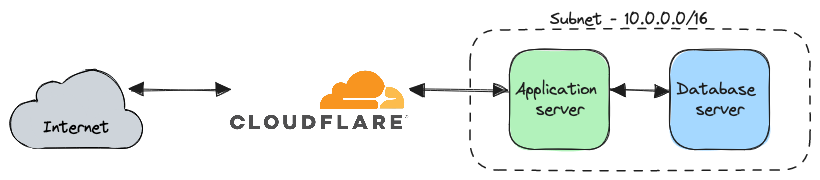
I wanted a machine for the application itself and another machine to host the database and anything else that the application might depend on (for example, Redis if needed). This way, I could only expose to the world the machine with the web application and keep the other machine (or machines) only accessible through the network subnet. I don’t actually need two different machines, I could very well just get away by using a single machine and it would work just fine. But the fun factor prevailed here.
I already have the domain I want to use registered through Cloudflare so I may use it as a proxy as well. Their free tier is very nice and gives some useful extra features (SSL termination, caching, DDoS prevention, …).
Setup the infrastructure
To get things started, I needed a cloud provider. There are a lot of good options out there. After comparing prices of different providers I ended up choosing Hetzner. Their pricing is cheap, they have the exact functionalities that I need and they have data centers in Europe.
The good thing about this whole plan is that the choice for a cloud provider ends up not being a big deal because everything is vendor agnostic and later can be moved to another cloud provider or even my hardware. This also means, that if you are following along you are free to make your own choices here and the process remains the same.
With the decision where to get the servers, how to create them? I could have gone to Hetzner’s dashboard and created everything I needed there. But again, where is the fun in that right? I didn’t need to but I decided to write some Terraform scripts and keep my infrastructure-as-code mostly because it was an opportunity to exercise my small Terraform skills and that way I could document what kind of infrastructure I have and replicate it if needed. If you are new to Terraform, I recommend looking at their tutorials using Docker.
I created a directory in my project to keep my Terraform scripts and started going at it. I decided to split the configuration into multiple files but that is just for organization purposes. Having one or multiple files is the same, as long as they are all in the same directory.
# File path: infra/main.tf

terraform {
  required_providers {
    hcloud = {
      source  = "hetznercloud/hcloud"
      version = "1.47.0"
    }

    cloudflare = {
      source  = "cloudflare/cloudflare"
      version = "4.31.0"
    }

    cloudinit = {
      source  = "hashicorp/cloudinit"
      version = "2.3.4"
    }
  }
}
I started by defining my terraform configuration block when I set the dependencies for my scripts. I just needed three dependencies
-
hcloud - used to interact with Hetzner Cloud services (servers, networks, firewall rules, …).
-
cloudflare - user to interact with Cloudflare services.
-
cloudinit - utility functions for cloud-init configurations.
If you want to keep your Terraform state elsewhere other than locally (for example with HCP Terraform), here is also the place to set those configurations.
In a separate file, I defined the variables for our Terraform script.
# File path: infra/variables.tf

variable "hcloud_token" {
  description = "Hetzner Cloud API Token"
  type        = string
  sensitive   = true
}

variable "cloudflare_api_token" {
  description = "Cloudflare API Token"
  type        = string
  sensitive   = true
}

variable "ssh_public_key" {
  description = "SSH public key"
  type        = string
}
The three variables are pretty self-explanatory. The hcloud_tokenand cloudflare_api_tokenare required by their providers to work with their APIs. The ssh_public_key variable holds the public SSH key that will be placed on the server’s authorized keys list.
The actual values for these variables are defined on their *.tfvars file. Always add this file to your .gitignore and .dockerignore files!
# File path: infra/terraform.tfvars

hcloud_token=<TOKEN>
cloudflare_api_token=<TOKEN>
ssh_public_key=<PUBLIC_SSH_KEY>
I then created a file dedicated to provider configurations and started using the previously defined variables.
# File path: infra/providers.tf

provider "hcloud" {
  token = var.hcloud_token
}

provider "cloudflare" {
  api_token = var.cloudflare_api_token
}
Next, I defined the necessary data sources on a dedicated file. Data sources load up data that exists outside of Terraform (for example, reading from a file or an HTTP request).
# File path: infra/data.tf

data "cloudflare_ip_ranges" "cloudflare" {}

data "cloudinit_config" "web" {
  gzip          = false
  base64_encode = false

  part {
    content_type = "text/cloud-config"
    content      = file("${path.module}/cloudinit/base.yml")
  }

  part {
    content_type = "text/cloud-config"
    content      = file("${path.module}/cloudinit/web.yml")
    merge_type   = "list(append)+dict(recurse_array)+str()"
  }
}

data "cloudinit_config" "accessory" {
  gzip          = false
  base64_encode = false

  part {
    content_type = "text/cloud-config"
    content      = file("${path.module}/cloudinit/base.yml")
  }

  part {
    content_type = "text/cloud-config"
    content      = file("${path.module}/cloudinit/accessory.yml")
    merge_type   = "list(append)+dict(recurse_array)+str()"
  }
}
In this file, there are three data sources defined:
-
cloudflare_ip_ranges.cloudflare - Gives us access to the list of IPv4 and IPv6 addresses from Cloudflare. These will be used when defining the firewall rules to only allow incoming connections to port 443 (HTTPS) from Cloudflare’s IP addresses (since we want to proxy requests from Cloudflare).
-
cloudinit_config.web - Loads up cloud-init configuration from a local file. This cloud-init configuration is specific for the machines running the web application.
-
cloudinit_config.accessory- Loads up cloud-init configuration from a local file. This cloud-init configuration is specific for the machines running the supporting services for the web application (for example, PostgreSQL).
For the cloud-init configuration, I defined a couple of files. A base file with common settings, a dedicated file for the web application server and another for the supporting services server.
# File path: infra/cloudinit/base.yml

timezone: Europe/Lisbon
write_files:
  - path: /etc/netplan/01-netplan.yaml
    content: |
      network:
        version: 2
        ethernets:
          eth0:
            nameservers:
              addresses:
                - 1.1.1.1
                - 1.0.0.1
    permissions: '0600'
runcmd:
  - netplan apply
  - sed -i '/PermitRootLogin/d' /etc/ssh/sshd_config
  - echo "PermitRootLogin without-password" >> /etc/ssh/sshd_config
  - sed -i '/PubkeyAuthentication/d' /etc/ssh/sshd_config
  - echo "PubkeyAuthentication yes" >> /etc/ssh/sshd_config
  - sed -i '/PasswordAuthentication/d' /etc/ssh/sshd_config
  - echo "PasswordAuthentication no" >> /etc/ssh/sshd_config
  - systemctl restart sshd
  - apt update
  - apt upgrade -y --allow-downgrades --allow-remove-essential --allow-change-held-packages
  - reboot
In the base file, I set the timezone, Cloudflare’s DNS servers, disabled root login and SSH authentication with a password, and upgraded system packages. Since this is a common action that all servers should do, it is kept in the base file.
# File path: infra/cloudinit/web.yml

write_files:
  - path: /letsencrypt/acme.json
    content: |
      {}
    permissions: '0600'
For the web application servers, I created a file used by Let’s Encrypt to issue an SSL certificate. In Cloudflare, I set the proxy to use the “Full (Strict)” SSL/TLS encryption mode. That mode sets the communication between Cloudflare and our application using HTTPS, and with “Strict” it enforces that the certificate belongs to a trusted certificate authority.
With this, I have everything in place to start creating resources in Hetzner. First, I create the firewall rules, on a dedicated file.
# File path: infra/firewall.tf

resource "hcloud_firewall" "allow_from_cloudflare" {
  name = "allow-from-cloudflare"
  rule {
    direction  = "in"
    protocol   = "icmp"
    source_ips = concat(data.cloudflare_ip_ranges.cloudflare.ipv4_cidr_blocks, data.cloudflare_ip_ranges.cloudflare.ipv6_cidr_blocks)
  }

  rule {
    direction  = "in"
    protocol   = "tcp"
    port       = "80"
    source_ips = concat(data.cloudflare_ip_ranges.cloudflare.ipv4_cidr_blocks, data.cloudflare_ip_ranges.cloudflare.ipv6_cidr_blocks)
  }

  rule {
    direction  = "in"
    protocol   = "tcp"
    port       = "443"
    source_ips = concat(data.cloudflare_ip_ranges.cloudflare.ipv4_cidr_blocks, data.cloudflare_ip_ranges.cloudflare.ipv6_cidr_blocks)
  }
}

resource "hcloud_firewall" "allow_ssh_from_home" {
  name = "allow-ssh-from-home"

  rule {
    direction  = "in"
    protocol   = "tcp"
    port       = "22"
    source_ips = ["<IPV4_ADDRESS>", "<IPV6_ADDRESS>"]
  }
}

resource "hcloud_firewall" "block_all_inbound_traffic" {
  name = "block-all-inbound-traffic"
}
Looking at this file, three different firewalls are created.
-
hcloud_firewall.allow_from_cloudflare - Firewall to allow for ICMP and TCP connections at port 80 (HTTP) and 443 (HTTPS) only for Cloudflare’s IP addresses (defined on the data sources above). I only want traffic coming in through the Cloudflare proxy.
-
hcloud_firewall.allow_ssh_from_home - Firewall to allow TCP connections on port 22 (SSH) only for my home network IP addresses. I want to block SSH connections from random people on the Internet so I only allow it from my home IP address.
-
hcloud_firewall.block_all_inbound_traffic - Firewall without any rule that can be attached to any server to block everything. If no firewall is attached to a machine, every port is open.
Finally, the only thing left is to create the network and servers.
# File path: infra/server.tf

resource "hcloud_network" "production" {
  name     = "production-network"
  ip_range = "10.0.0.0/16"
}

resource "hcloud_network_subnet" "production" {
  network_id   = hcloud_network.production.id
  type         = "cloud"
  network_zone = "eu-central"
  ip_range     = "10.0.0.0/24"
}

resource "hcloud_ssh_key" "production" {
  name       = "Production SSH Key"
  public_key = var.ssh_public_key
}

resource "hcloud_server" "production_web_1" {
  name         = "production-web-1"
  image        = "ubuntu-24.04"
  server_type  = "cax11"
  location     = "fsn1"
  ssh_keys     = [hcloud_ssh_key.production.id]
  firewall_ids = [hcloud_firewall.allow_from_cloudflare.id, hcloud_firewall.allow_ssh_from_home.id]
  user_data    = data.cloudinit_config.web.rendered

  public_net {
    ipv4_enabled = true
    ipv6_enabled = true
  }

  network {
    network_id = hcloud_network.production.id
    ip         = "10.0.0.2"
  }

  depends_on = [
    hcloud_network.production,
    hcloud_ssh_key.production,
    hcloud_firewall.allow_from_cloudflare,
    hcloud_firewall.allow_ssh_from_home
  ]
}

resource "hcloud_server" "production_accessory_1" {
  name         = "production-accessory-1"
  image        = "ubuntu-24.04"
  server_type  = "cax11"
  location     = "fsn1"
  ssh_keys     = [hcloud_ssh_key.production.id]
  firewall_ids = [hcloud_firewall.block_all_inbound_traffic.id]
  user_data    = data.cloudinit_config.accessory.rendered

  public_net {
    ipv4_enabled = true
    ipv6_enabled = true
  }

  network {
    network_id = hcloud_network.production.id
    ip         = "10.0.0.3"
  }

  depends_on = [
    hcloud_network.production,
    hcloud_ssh_key.production,
    hcloud_firewall.block_all_inbound_traffic
  ]
}
This seems like a long file at first but it just defines a couple of things.
-
hcloud_network.production - Defines a new network with the given range of IP addresses.
-
hcloud_network_subnet.production - Defines a new subnet with the given range of IP addresses under the previously defined network. There was no specific reasoning behind the chosen IP address ranges, just mimicking what the Hetzner dashboard automatically creates.
-
hcloud_ssh_key.production - Add the public SSH key previously defined in the variables.
-
hcloud_server.production_web_1 - A CAX11 machine (Arm64 architecture, 2 vCPU, 4 GB of RAM and 40 GB of disk space) with Ubuntu 24.04. Attached firewalls defined previously that limit access from Cloudflare’s IP addresses and SSH from my home network.
-
hcloud_server.production_accessory_1- A CAX11 machine (Arm64 architecture, 2 vCPU, 4 GB of RAM and 40 GB of disk space) with Ubuntu 24.04. Attached firewall defined previously that blocks every port.
And that is it! I now have a Terraform script that can spin up all the infrastructure that I need. And the cool thing about this is that if I need to add something new, it is a pretty easy process. The only step left is to run it.
terraform apply
If everything works out, the infrastructure is now ready. Using the public IP of the web application server, I can SSH into the machine. But what about the accessories server? It does not have the firewall rule to allow SSH. The web application server has network access to the accessories server because they are on the same subnet. So we can use it as a proxy in the SSH.
# File path: ~/.ssh/config

Host web-server
  HostName <WEB_APP_SERVER_IP>
  User root
  PreferredAuthentications publickey

Host accessories-server
  HostName 10.0.0.3
  User root
  PreferredAuthentications publickey
  ProxyJump web-server
With this SSH configuration on my local machine, now I can access both servers through SSH using the aliases configured in ~/.ssh/config. This is nice for two reasons: first I can use the aliases instead of writing the user and IP address of the server (more convenient, easy to memorize, and remains the same if I replace the IP addresses), second I don’t need to add an extra firewall rule to the accessories server just to SSH into it.
ssh web-server
ssh accessories-server
The only thing missing is to update the DNS records of my domain (registered in Cloudflare) to point to the web application server. For that, I create an A record pointing to the public IPv4 address and an AAAA record pointing to the public IPv6 address of the web application server. I am doing this process manually going to Hetzner’s dashboard to find the IP addresses and then going to Cloudflare’s dashboard to create the DNS records. This could be also automated using Terraform in the future.
Configure and deploy with Kamal
Getting started is pretty easy. I installed Kamal using the Ruby gem.
gem install kamal
With Kamal installed, in my project directory, I ran the initialization command.
kamal init
This command creates the config/deploy.yml file, where all the configuration regarding the deployment takes place. It also creates some sample files for hooks but, for now, I am not using those. Let’s look at each block of the file individually.
service: poupas
The service value defines the name of your application. You can set whatever name you want. It is going to be used to name the Docker containers.
image: dfilipes/poupas
The image value is the name of your Docker image. In my case, I am going to store the Docker images in Docker Hub. The free tier is enough for me because it allows one private repository. You can use whatever container registry you want (for example, DigitalOcean Container Registry or AWS ECR).
servers:
  web:
    hosts:
      - web-server
    labels:
      traefik.http.routers.poupas.rule: Host(`poupas.io`)
      traefik.http.routers.poupas_secure.entrypoints: websecure
      traefik.http.routers.poupas_secure.rule: Host(`poupas.io`)
      traefik.http.routers.poupas_secure.tls.certresolver: letsencrypt
    env:
      secret:
        - RAILS_MASTER_KEY
        - DATABASE_URL
In this block, it is defined as the deployment of the web servers in a single host (in this case I am using the SSH alias defined before, but this could just be an IP address). If you want to deploy multiple instances of your web application on different servers, you just need to add more hosts in this block. In that case, you might also need a load balance somewhere (for example, on your cloud provider, part of your infrastructure). In my case, one instance is good enough for now.
Some container labels are defined so that Traefik can issue an SSL certificate using Let’s Encrypt.
Finally, some secret environment variables are defined. You can define any environment variable that you need. The values for these environment variables are stored in a .env file in the root directory of the project (don’t forget to add this file to the .gitignore and .dockerignore files).
registry:
  username: dfilipes
  password:
    - KAMAL_REGISTRY_PASSWORD
Next, I define the username and secret environment variable for the credentials for my chosen container registry (in my case, DockerHub). The KAMAL_REGISTRY_PASSWORD value also is stored on the .env file. This should not be your account password. You should generate an access token on your container registry and use it here.
accessories:
  db:
    image: postgres:16-alpine
    host: poupas-accessories
    port: 5432
    env:
      clear:
        POSTGRES_USER: postgres
        POSTGRES_DB: postgres
      secret:
        - POSTGRES_PASSWORD
    directories:
      - data/postgres:/var/lib/postgresql/data
    files:
      - infra/postgres/postgresql.conf:/usr/local/share/postgresql/postgresql.conf.sample
      - db/production.sql:/docker-entrypoint-initdb.d/setup.sql
In this block, I configure my only accessory for now, the db accessory. At this point, this should look familiar if you already have some experience with Docker. If you squint your eyes, this almost looks like a docker-compose definition. A Docker image is defined, the host is just our single accessories server (still using the SSH alias defined before), the exposed port, some environment variables required by the PostgreSQL image, the volume mount for the data directory, and some extra files used to configure PostgreSQL and initial database setup.
During my research on how to set this, I found PGTune to generate some initial configuration for PostgreSQL. You just insert some basic information about your server and your expected workload and the tool suggests a configuration.
# File path: infra/postgres/postgresql.conf

# DB Version: 16
# OS Type: linux
# DB Type: web
# Total Memory (RAM): 4 GB
# CPUs num: 2
# Data Storage: ssd

listen_addresses = '*'
max_connections = 200
shared_buffers = 1GB
effective_cache_size = 3GB
maintenance_work_mem = 256MB
checkpoint_completion_target = 0.9
wal_buffers = 16MB
default_statistics_target = 100
random_page_cost = 1.1
effective_io_concurrency = 200
work_mem = 2621kB
huge_pages = off
min_wal_size = 1GB
max_wal_size = 4GB
One small detail that is buried in the PostgreSQL image README (under the “Database Configuration” section) is that if you are using a custom configuration file, we need to add the listen_addresses = '*' value so that other containers can access the database.
traefik:
  options:
    publish:
      - "443:443"
    volume:
      - "/letsencrypt/acme.json:/letsencrypt/acme.json"
  args:
    entryPoints.web.address: ":80"
    entryPoints.websecure.address: ":443"
    entryPoints.web.http.redirections.entryPoint.to: websecure
    entryPoints.web.http.redirections.entryPoint.scheme: https
    entryPoints.web.http.redirections.entrypoint.permanent: true
    certificatesResolvers.letsencrypt.acme.email: "<YOUR_EMAIL_HERE>"
    certificatesResolvers.letsencrypt.acme.storage: "/letsencrypt/acme.json"
    certificatesResolvers.letsencrypt.acme.httpchallenge: true
    certificatesResolvers.letsencrypt.acme.httpchallenge.entrypoint: web
Last, but not least, the necessary configuration of Traefik so that it can generate an SSL certificate with Let’s Encrypt. It mounts the file created in the cloud-init configuration into the Traefik container. This file will store the certificates issued by Let’s Encrypt.
And, believe it or not, that is it! There is much more that we can configure with Kamal but this is the bare minimum I need for now. The only thing remaining is running the setup.
kamal setup
This command will SSH into the servers, install Docker if not installed yet, build your application Docker image, push it to the registry, and start all the containers in both servers. After a couple of minutes (the first run without any cache will take about five minutes) everything is in its place and the web application should be accessible through the browser.
Some useful commands
Kamal provides some useful commands to help us manage the running application and deploy new versions.
kamal deploy
The first one is pretty obvious. Any time I want to deploy a new version of my application, I just need to run this command and that is it! It will create a new Docker image, push it to the registry, and deploy it to the servers through SSH. New deployments usually take less than a minute, not bad!
kamal app logs
This command shows the application logs from all the application servers (even if you have more than one). It has some handy flags:
-
-for--follow- It follows the logs as they appear. -
-g <query>or--grep <query>- It searches the logs for the given search parameter.
kamal app exec --interactive --reuse 'bin/rails console'
It is also possible to run shell commands on the running containers (or create temporary containers to run those commands, this is the default behavior). For example, this command runs bin/rails console in the web application container to start an interactive Ruby console. You can run any command you want here.
kamal accessory exec db --interactive --reuse 'psql -U postgres -d postgres'
Another example of running a command in a running container is to open a psql console in the database accessory container. Again, we can put there any shell command and it will run on the given accessory. If you have multiple accessories, you just need to set the correct accessory name.
Why you should do it too
Overall, the process was pretty easy to set up and now I have all the convenience of other platforms on infrastructure that I own. I am not locked in to any particular vendor and I can move things around as I see fit.
Second, this is a good opportunity to learn and exercise different concepts like Terraform, networking, Docker, and Linux in general, … Learning is always a valuable asset to you.
Third, it is surprisingly cheap to run a pretty decent infrastructure that can take you a very long way. The total cost of this (as of May 2024) on Hetzner is just €9.10 per month. For that, you get two Arm64 machines with 2 vCPU, 4 GB of RAM, and 40 GB of storage running Ubuntu 24.04 each. If you don’t need an IPv4 address allocated, you can save €0.50 per server, bringing the total cost to just €8.10 per month. I would bet that for the majority of personal projects out there, and maybe even some early-stage start-ups, this kind of infrastructure is more than enough to last a long time.
Sources
To reach this point some resources were very useful to me. For a Terraform refresher, the official Docker tutorials were very good and straight to the point. To get started with Kamal, their official documentation provided a good starting point. For the Let’s Encrypt setup with Traefik, this blog post from Luiz Kowalski was a great resource.